
CleanScreen
App
Sharp text on external displays, at the size you want. It lives in your menu bar.
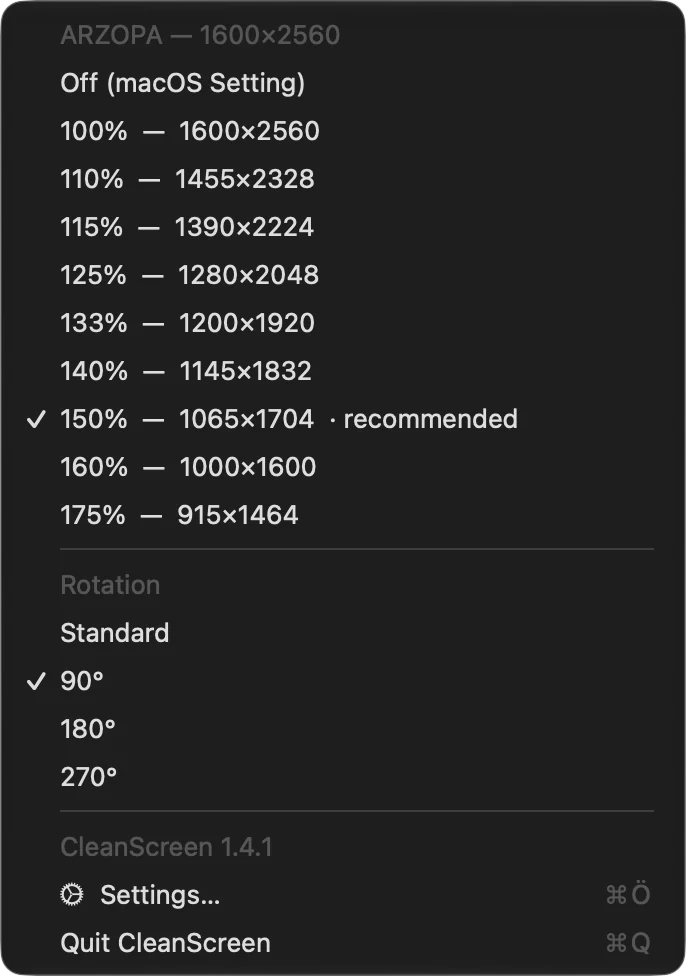
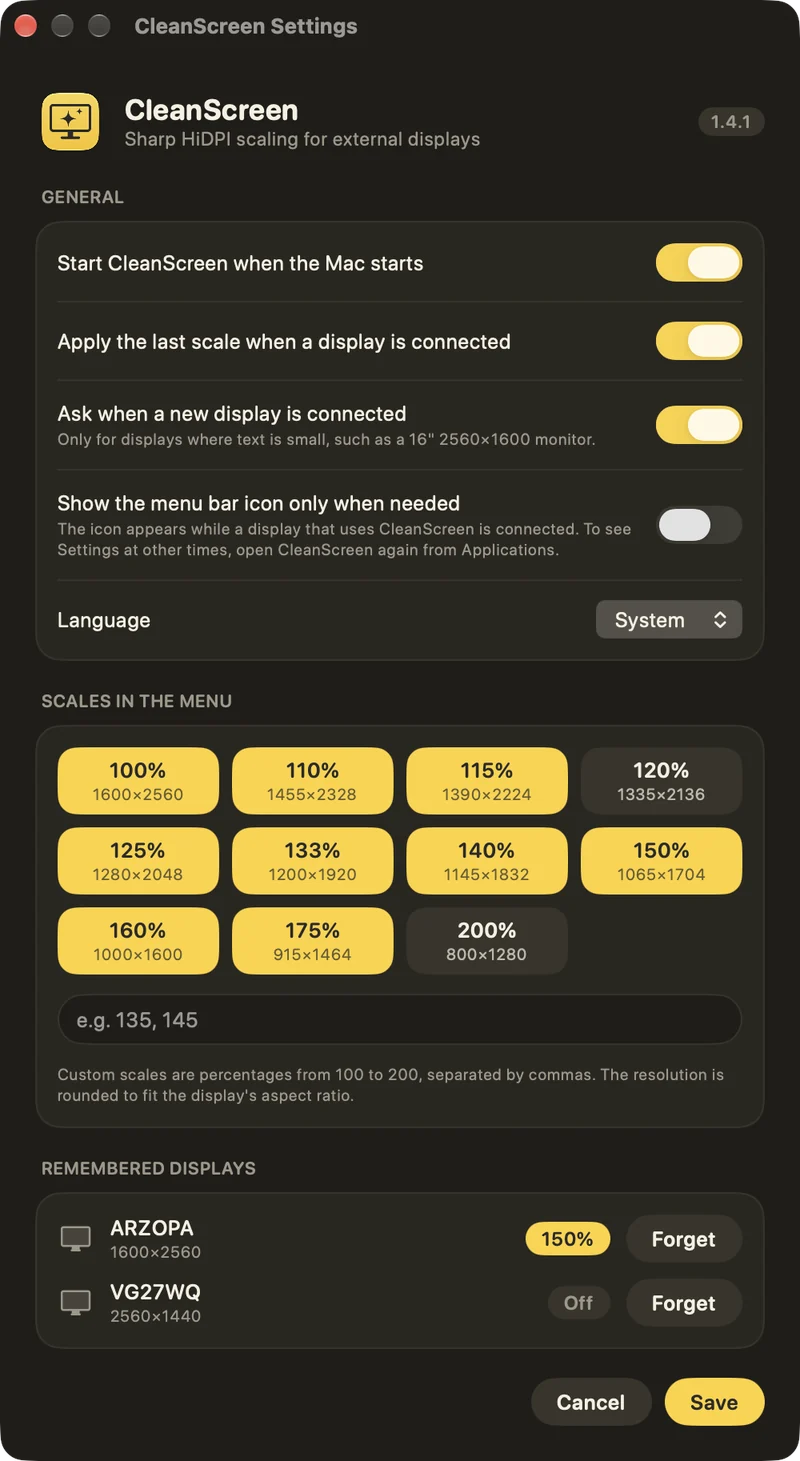
About CleanScreen
On many external displays, macOS offers sharp HiDPI (Retina) scaling at only a few sizes. Pick something in between, such as 125%, and the picture turns soft, because macOS just stretches it. A 16-inch monitor at 2560×1600 is a typical case: sharp but tiny text at its own resolution, blurry text at 2048×1280.
CleanScreen makes the other sizes HiDPI too. It draws the desktop at twice your chosen size on a virtual display, then mirrors your monitor to it. The monitor gets a cleanly scaled-down picture instead of a stretched one.
Screenshots
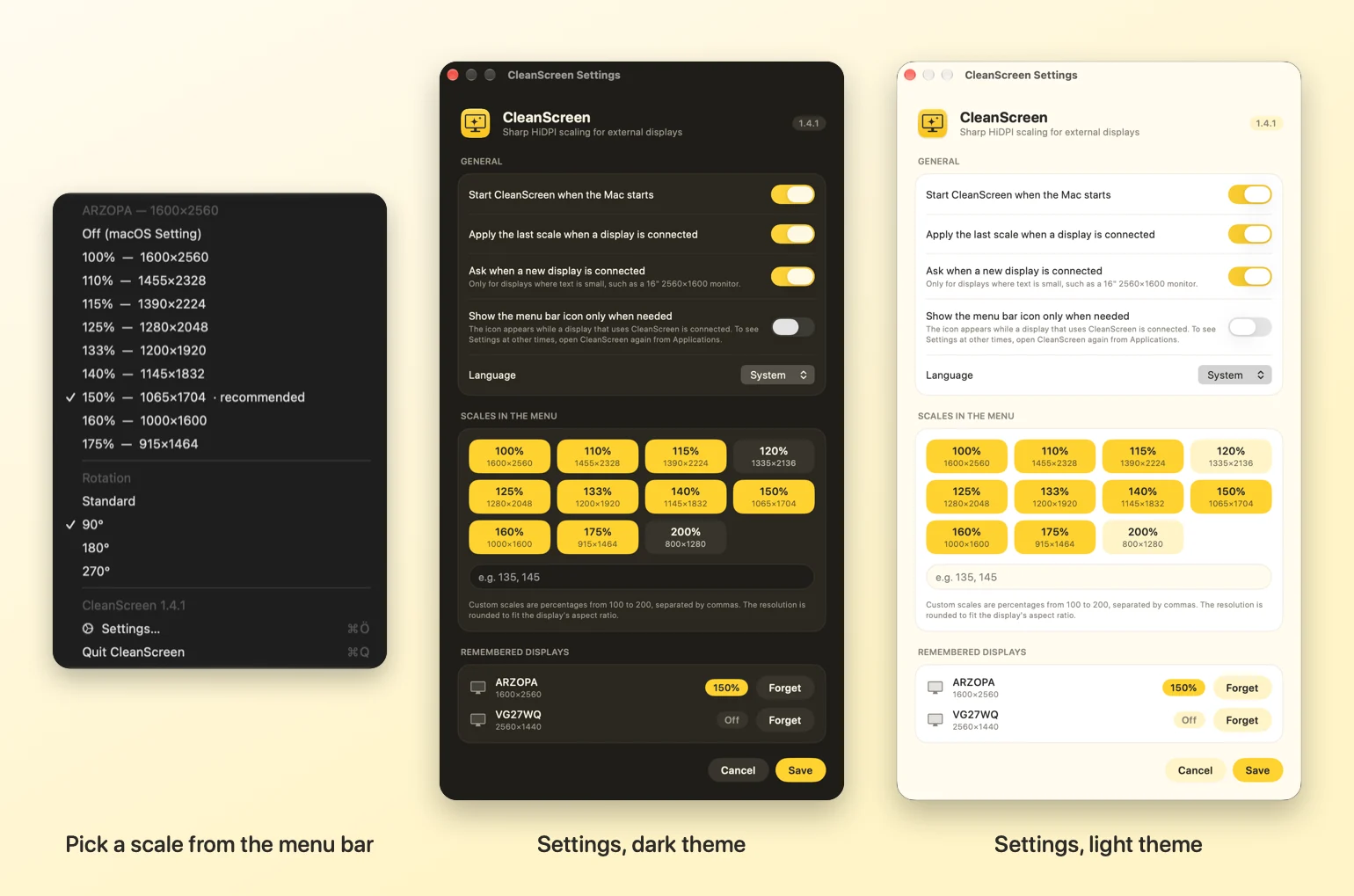
What it does
- Sharp at every scale
- Choose from 100% to 200%, all in HiDPI. Text can look very slightly soft at sizes other than 100%.
- Remembers your displays
- Applies the last scale when you plug a display back in or wake your Mac.
- Suggests a size
- Offers a scale when you connect a display where text is small. It doesn't ask about displays that don't need one.
- Turns the picture
- Rotate an external display to 90°, 180° or 270°.
- Several displays
- Each one keeps its own scale.
- Easy to undo
- Choose Off in the menu or quit the app. Nothing changes permanently.
- Add your own sizes
- Choose which scales appear in the menu, or type your own.
- Stays out of the way
- It can start with your Mac and keep its icon hidden until a display that uses it is connected.
Good to know
While CleanScreen scales a display, that display runs at 60 Hz, so fast monitors slow down. Monitors with a variable refresh rate may flicker. The app warns you about these displays. It also relies on an undocumented part of macOS, so a system update could break it.
Install it
- Open the download and drag CleanScreen to your Applications folder.
- Open it. macOS will block it the first time, because Apple hasn't notarized the app. Close the warning.
- Go to System Settings › Privacy & Security and click Open Anyway.
- Click the display icon in the menu bar and choose a scale.
Details
- Version
- 1.4.1
- Released
- 22 Oct 2026
- Works on
- macOS 13 or later, Apple Silicon and Intel
- Languages
- English, Turkish
- License
- MIT
- GitHub
- Source code
All releases - Support
- mekitlab@gmail.com
- Privacy
- Privacy policy